
Can I delete ~/Library/Caches on Mac?
Yes — safe to remove
Nothing here is the only copy. macOS puts it back on its own.
- Space you get back
- 2 GB – 50 GB
- Comes back by itself
- The next time you open each app
- What you actually lose
- One slower launch per app
- File Location
~/Library/Caches
The right way to clear it
- Quit the app completely (⌘+Q in the menu bar).
- Open Finder and press ⌘+Shift+G to open "Go to Folder".
- Paste this path and press Enter:
~/Library/Caches - Select the files you no longer need and move them to Trash. Empty Trash to reclaim the space.
See it working
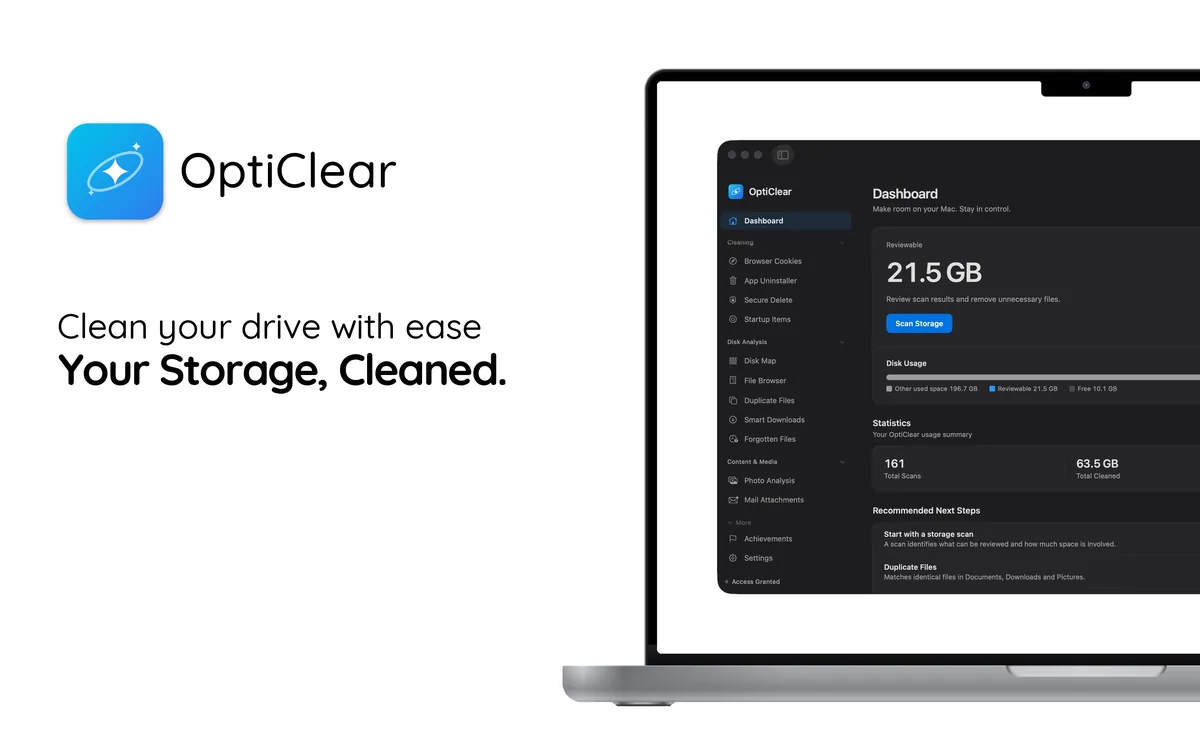


Let OptiClear find these files
Doing this by hand is slow and easy to get wrong. OptiClear scans your Mac, lists every related file with its size, and moves only what you select to the Trash, so you can still restore it. Scanning is free; cleaning requires OptiClear Pro.
Frequently asked questions
Is it safe to delete ~/Library/Caches?
Yes, once the apps using it are quit. It holds derived data, not originals, so macOS rebuilds whatever it still needs.
Why is ~/Library/Caches so large?
It grows with use and macOS puts no ceiling on it. 2 GB – 50 GB is normal on a Mac that has been in service a while — the detail guide breaks down what fills it.