
Browsers
How to Completely Uninstall Arc Browser on Mac
To uninstall Arc Browser, move the application icon to the Trash and empty it. Since The Browser Company shifted focus to the Dia browser in 2025 and now provides only maintenance and security updates for this app, you may choose to remove it entirely.
Remove Arc Browser and everything it leaves behind
Arc Browser data usually takes 200 MB – 2 GB on a Mac. The free scan shows the exact size on your Mac before you change anything.
Free scan · No account · Nothing is deleted without your OK · Moves to the Trash first · macOS 14+
OptiClear is a Mac app. Copy this page's link and open it on your Mac.
Email me the link- Application
- Arc Browser
- Typical data size
- 200 MB – 2 GB
- Category
- Browsers
- File Location
~/Library/Application Support/Arc
Manual cleanup steps
- Quit the app completely (⌘+Q in the menu bar).
- Move Arc Browser from the Applications folder to the Trash.
- Remove the folders Arc Browser left behind, listed in the table below.
- Empty the Trash to free up the space.
Everything Arc Browser keeps on your Mac
6 locations. Tick each one as you remove it; back up anything marked as your data first.
Locations are the standard macOS folders Arc Browser uses; some appear only after you use the matching feature.
What happens when you trash Arc Browser
Specific to Arc Browser
Dragging the app to the Trash removes the executable but leaves behind support folders, preferences, and cached data. These remaining files typically occupy 200 MB – 2 GB of space. User data, including browser profiles and the StorableSidebar.json file containing your Spaces and pinned tabs, stays on your Mac until deleted manually.
- Current status
- The Browser Company stopped adding new features to Arc in 2025 and moved its focus to its Dia browser; Arc only receives maintenance and security updates.
- Account and sync
- Arc requires an Arc account; Arc Sync can carry Spaces, pinned tabs and folders to other Macs, but history, cookies and saved passwords stay in the local profile folder.
Preparing to remove Arc Browser
Before removal, ensure your configuration is backed up because deleting the app does not migrate your local profile. Confirm your synchronization status to preserve cloud-stored layouts. You must quit the app completely before attempting to delete its associated library files via Finder > Go > Go to Folder.
0 of 3 done
By hand or with OptiClear
| By hand | With OptiClear | |
|---|---|---|
| Places to check | 6 folders, one by one | One scan |
| File sizes | You look them up yourself | Shown for every item |
| Removing the wrong thing | Easy to delete the wrong folder | Goes to the Trash first, so it can be restored |
| Cost | Free | Scan is free; cleaning needs Pro (yearly plan has a 7-day free trial) |
See it working
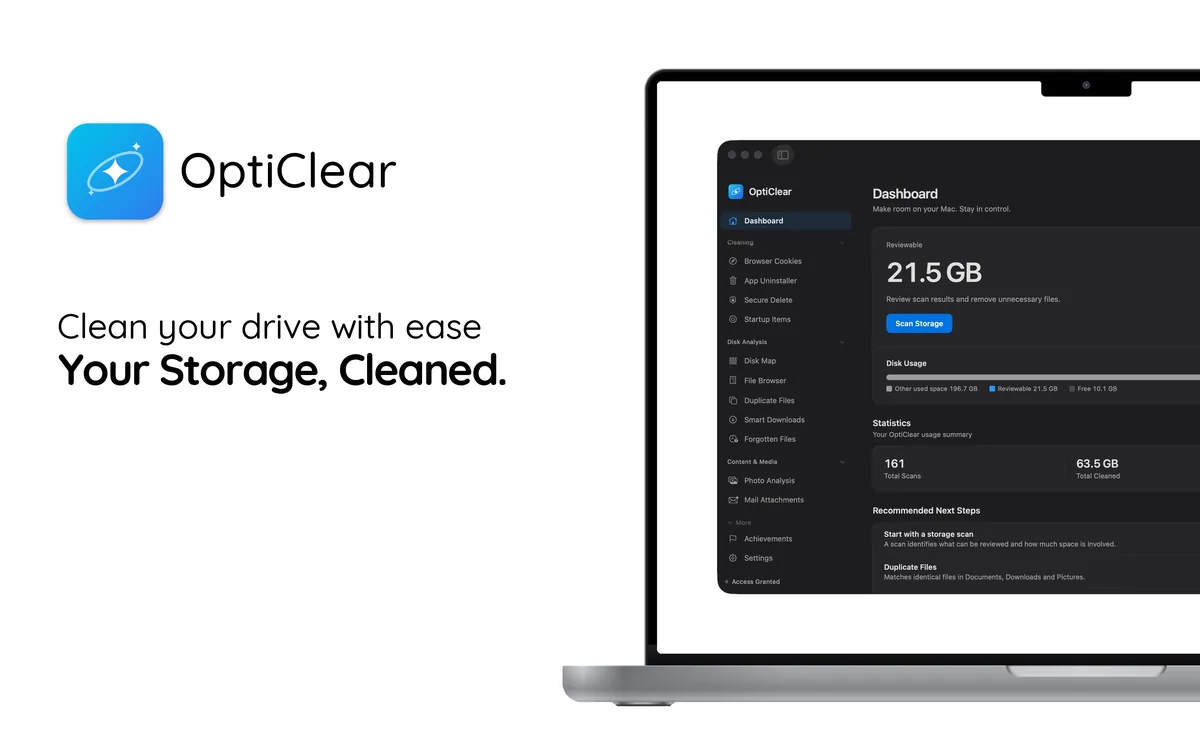
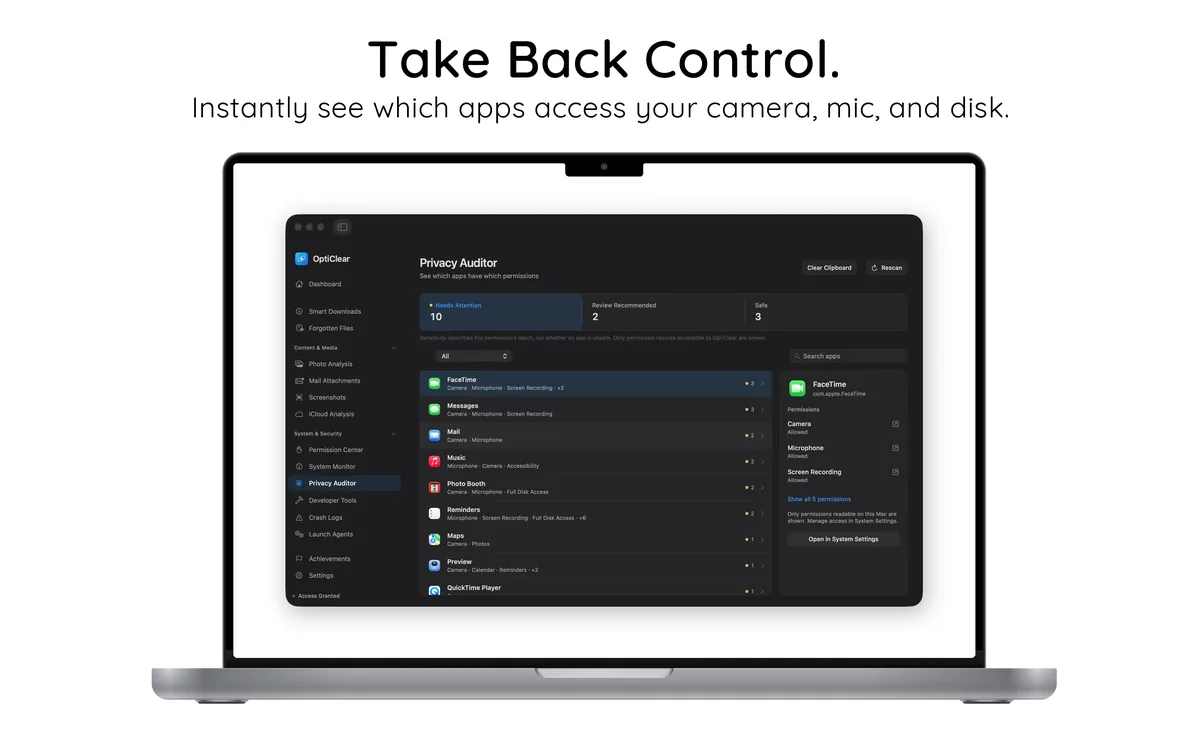
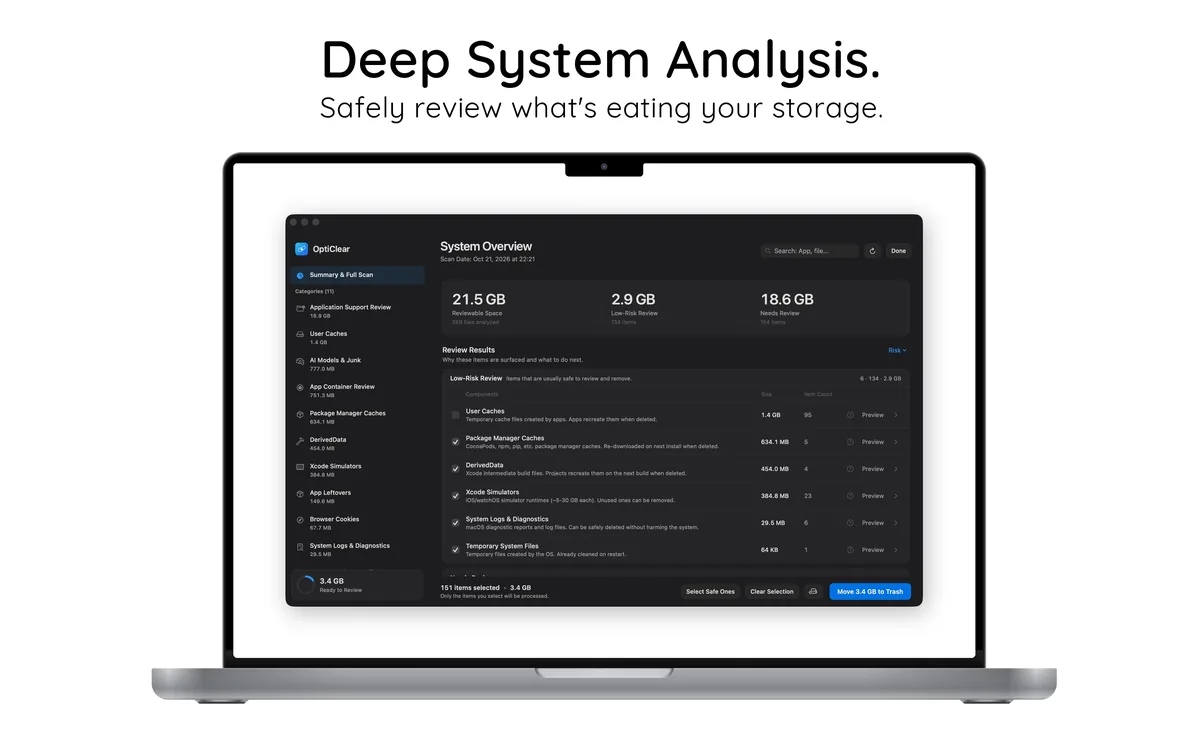
Try it without risk
- Download and scan for freeSee every Arc Browser file and its size. No account needed.
- Clean free for 7 daysStart the 7-day free trial of the yearly plan inside the app.
- Keep it or cancelCancel in your App Store settings at least 24 hours before the trial ends and you won't be charged.
After the free trial, Pro costs $39.99 per year in your country's App Store; cancel any time.