
Clear Cinema 4D Cache on Mac
Over time, Cinema 4D accumulates cache, presets, renders in ~/Library/Preferences/MAXON that can grow to 2 GB – 100 GB. Clearing them often fixes glitches, login loops and frees serious disk space.
- Application
- Cinema 4D
- File Location
~/Library/Preferences/MAXON- What Gets Cleaned
- cache, presets, renders
- Space Recovered
- 2 GB – 100 GB
- Risk Level
- Caution
- Category
- 3D & CAD
Manual cleanup steps
- Quit the app completely (⌘+Q in the menu bar).
- Open Finder and press ⌘+Shift+G to open "Go to Folder".
- Paste this path and press Enter:
~/Library/Preferences/MAXON - Select the files you no longer need and move them to Trash. Empty Trash to reclaim the space.
See it working

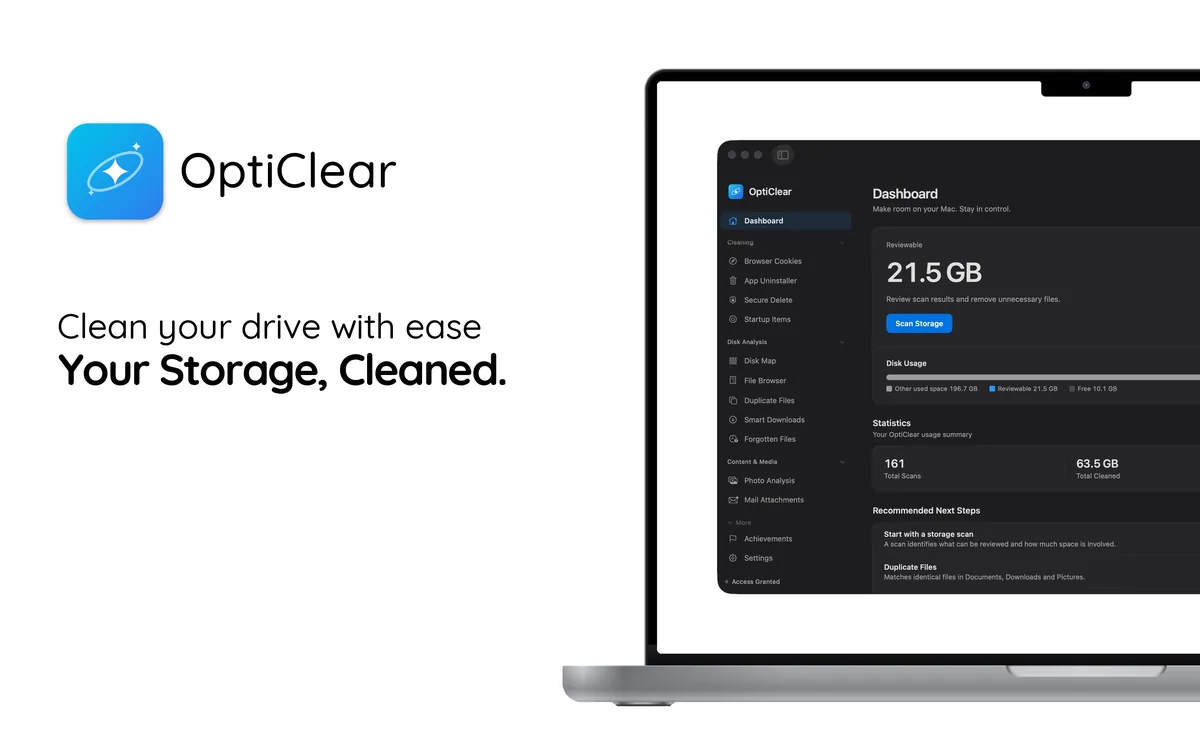

Let OptiClear find these files
Doing this by hand is slow and easy to get wrong. OptiClear scans your Mac, lists every related file with its size, and moves only what you select to the Trash, so you can still restore it. Scanning is free; cleaning requires OptiClear Pro.
Frequently asked questions
Is it safe to delete these files manually?
Usually, yes. Files in ~/Library/Preferences/MAXON are created by the app and can be removed once it has quit. Risk level: Caution. Move them to the Trash rather than deleting them permanently, so anything you still need can be restored; the app recreates what it requires.
Will I lose my settings or data?
Manual removal of the support folder resets the app to defaults. To keep settings, back up the location first or use OptiClear's selective cleanup.