
VPN
How to Completely Uninstall TunnelBear on Mac
Drag TunnelBear to the Trash removes only the application bundle, leaving behind its support files, logs, and system-level network configurations. You must manually delete these remnants and remove the VPN profile to fully uninstall the app.
Remove TunnelBear and everything it leaves behind
TunnelBear data usually takes 100 MB – 500 MB on a Mac. The free scan shows the exact size on your Mac before you change anything.
Free scan · No account · Nothing is deleted without your OK · Moves to the Trash first · macOS 14+
OptiClear is a Mac app. Copy this page's link and open it on your Mac.
Email me the link- Application
- TunnelBear
- Typical data size
- 100 MB – 500 MB
- Category
- VPN
- File Location
~/Library/Application Support/TunnelBear
Manual cleanup steps
- Quit the app completely (⌘+Q in the menu bar).
- Move TunnelBear from the Applications folder to the Trash.
- Remove the folders TunnelBear left behind, listed in the table below.
- Empty the Trash to free up the space.
Everything TunnelBear keeps on your Mac
1 locations. Tick each one as you remove it; back up anything marked as your data first.
Locations are the standard macOS folders TunnelBear uses; some appear only after you use the matching feature.
What TunnelBear leaves behind after you drag it to the Trash
Specific to TunnelBear
Dragging the app to the Trash does not remove the support folder containing settings and logs, nor does it unregister the network extension and VPN configuration from macOS. These background components remain active and registered in the system even after the app is gone. The support folder typically occupies 100 MB – 500 MB and stays on your disk until you delete it manually. You must remove these items separately to complete the uninstallation.
- Background items
- The app adds a VPN configuration and network extension to macOS that stay registered until the app is removed.
- Account and sync
- Your plan and data allowance are tied to your TunnelBear account, not the Mac.
What to save or deactivate before uninstalling TunnelBear
Before removing the app, ensure you have logged out and disconnected to prevent immediate network blocks. Your account and data allowance are stored on the server, so local deletion does not erase your plan. Check System Settings to remove any lingering VPN entries. This step ensures your internet connection remains functional after the app is removed.
0 of 4 done
By hand or with OptiClear
| By hand | With OptiClear | |
|---|---|---|
| File sizes | You look them up yourself | Shown for every item |
| Removing the wrong thing | Easy to delete the wrong folder | Goes to the Trash first, so it can be restored |
| Cost | Free | Scan is free; cleaning needs Pro (yearly plan has a 7-day free trial) |
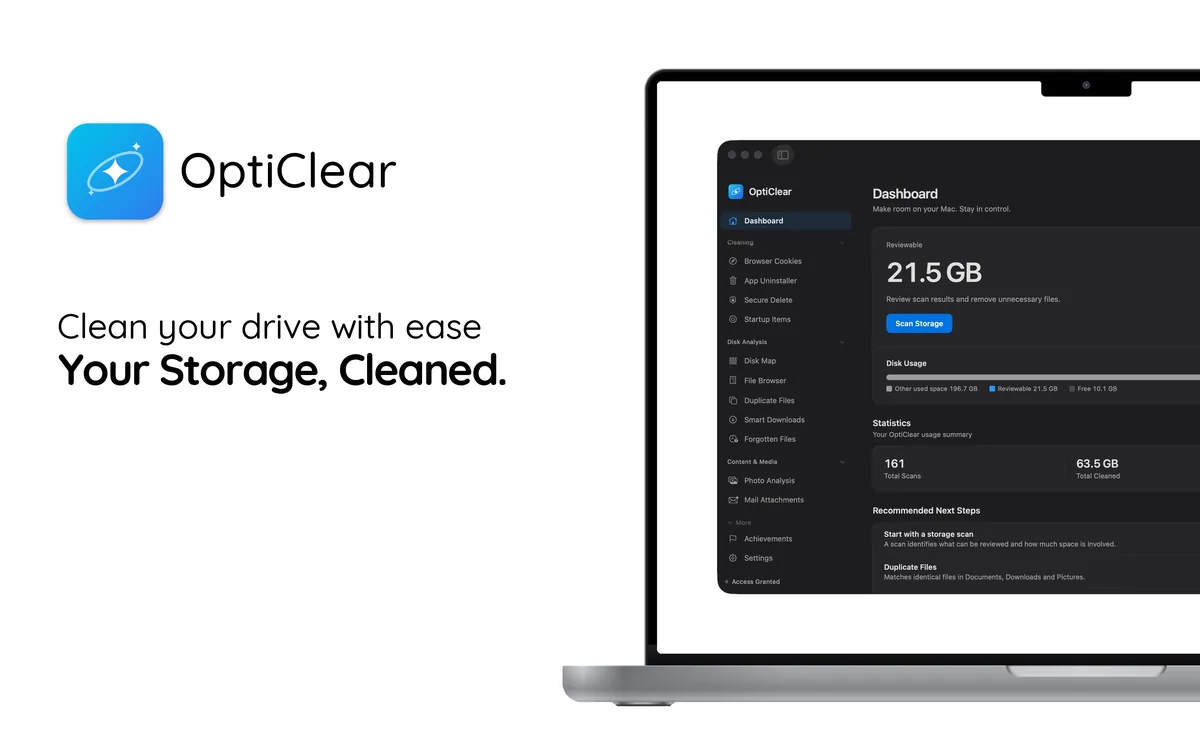
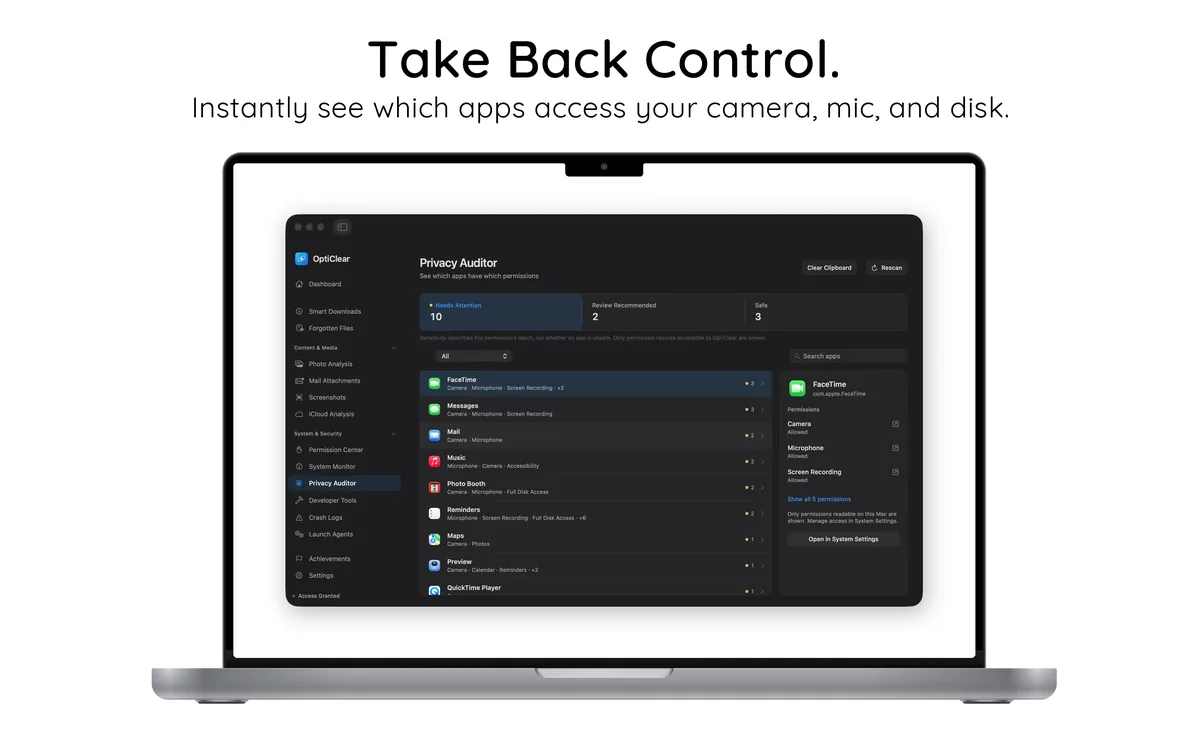
See it working

Try it without risk
- Download and scan for freeSee every TunnelBear file and its size. No account needed.
- Clean free for 7 daysStart the 7-day free trial of the yearly plan inside the app.
- Keep it or cancelCancel in your App Store settings at least 24 hours before the trial ends and you won't be charged.
After the free trial, Pro costs $39.99 per year in your country's App Store; cancel any time.